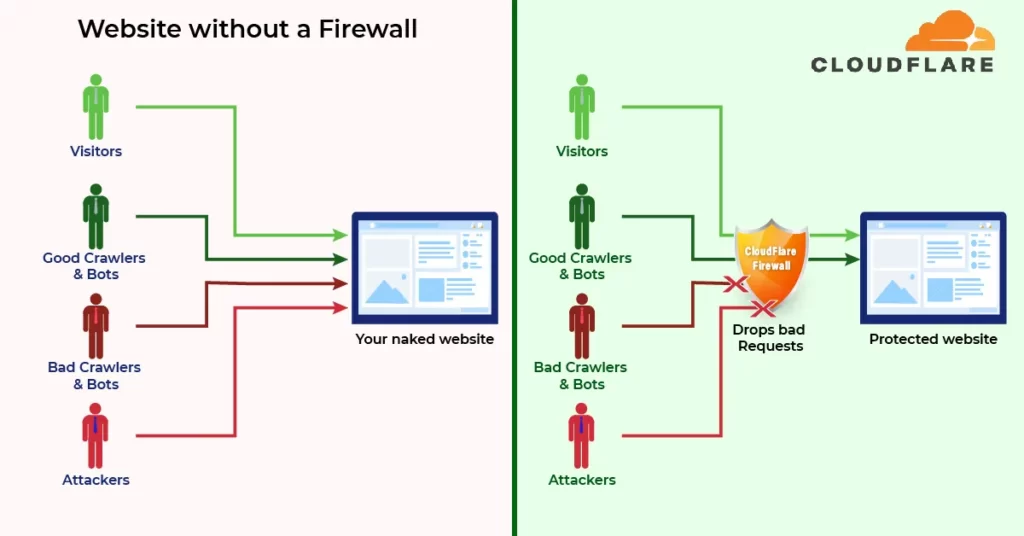
Cloudflare Firewall Rules are available for all Cloudflare plans. The free plan can have up to 5 active Firewall rules.
A Firewall Rule consists of two parts: Matching and Action.
- Matching: A defined filter that runs and match your traffic for a string or pattern
- Action: the action perform on the matched traffic (block, challenge, captcha, allow)
You can also order the firewall rules to override the default sequence which is based on the rule’s action.
Firewall Rules: Matching
You can match a traffic to the HTTP request, including country, hostname, IP address, URI, referrer, known bots, threat score, and more.
Known bots (cf.client.bot) is Cloudflare’s defined list of “known good bots”, which includes bots from Google, Apple, Bing, Linkedin, Pingdom, Yahoo… You are recommended to add cf.client.bot in an Allowed rule to avoid blocking good crawlers which could affect your SEO and monitoring.
Cloudflare has an internal algorithm to calculate an IP’s reputation and assigns a threat score (types of threats) that ranges from 0 to 100. Threat score is used for the Security Level setting under Firewall:
- High — for scores greater than 0
- Medium — for scores greater than 14
- Low — for scores greater than 24
- Essentially Off — for scores greater than 49
Regular Expression matching is supported for Cloudflare Business and Enterprise plans.
Firewall Rules: Action
You can set to perform an action to a filter matched traffic
- Block: the traffic is block to reach your web application
- JS Challenge: JavaScript challenge. Visitors do not have JavaScript support (mostly bots) will be blocked
- Challenge (Captcha): Visitor is required to pass a captcha challenge to allow access
- Allow: Traffic is allowed to reach your web application
How to add Cloudflare WAF rules?
I use Cloudflare for all my WordPress websites – not just to make them faster, but more secure as well.
This guide is aimed at security-minded webmasters who run a WordPress site or blog on a Cloudflare-enabled domain.
By adding the WordPress-specific rules I describe on this page, you can secure your site and block attacks before they even reach your web host’s server.

1st Firewall rule to black attacks:
- Give your rule a name, such as “Block WP Attacks”
- Click Create a Firewall Rule
- Give a Rule Name
- Click Edit expression
- Copy & Paste the expression into the text area and Replace the text
"YourWebsite.com"with your website adress - Select action Block Or Managed challenge or Challenge (Captcha). I personally prefer Challenge (Captcha)
- Click Deploy to activate the Firewall rule
(http.request.uri.path contains "/wp-login.php") or (http.request.uri.path contains "/xmlrpc.php") or (http.request.uri.path contains "/wp-admin/" and not http.request.uri.path contains "/wp-admin/admin-ajax.php" and not http.request.uri.path contains "/wp-admin/theme-editor.php") or (http.request.uri.path contains "/wp-content/plugins/" and not http.referer contains "YourWebsite.com" and not cf.client.bot) or (http.request.uri.path eq "/wp-comments-post.php" and http.request.method eq "POST" and not http.referer contains "YourWebsite.com") or (cf.threat_score gt 10 and not cf.client.bot)
Follow the below instructions and add the above firewall rules text to your expression builder:

2nd rule to Block bad spam bots using Expression Editor
- Create a new Firewall rule and Copy/Paste the expression into the text area
- Select action as Block
- Deploy to activate the Firewall rule
Expression Editor:
(http.user_agent contains "Yandex") or (http.user_agent contains "muckrack") or (http.user_agent contains "Qwantify") or (http.user_agent contains "Sogou") or (http.user_agent contains "BUbiNG") or (http.user_agent contains "knowledge") or (http.user_agent contains "CFNetwork") or (http.user_agent contains "Scrapy") or (http.user_agent contains "SemrushBot") or (http.user_agent contains "AhrefsBot") or (http.user_agent contains "Baiduspider") or (http.user_agent contains "python-requests") or (http.user_agent contains "crawl" and not cf.client.bot) or (http.user_agent contains "Crawl" and not cf.client.bot) or (http.user_agent contains "bot" and not http.user_agent contains "bingbot" and not http.user_agent contains "Google" and not http.user_agent contains "Twitter" and not cf.client.bot) or (http.user_agent contains "Bot" and not http.user_agent contains "Google" and not cf.client.bot) or (http.user_agent contains "Spider" and not cf.client.bot) or (http.user_agent contains "spider" and not cf.client.bot)

This will create a long list of bots to block. It will block any non-known good bots traffic with a user agent that contains strings such as ‘crawl’, ‘bot’, ‘spider’, and a few other user agents.
Here we add the Firewall rule using the Expression Editor as shown above.
Need an expert to setup firewall or need someone to takecare of your wordpress securiety?
Talk to an expert or Visit our Website developement service page for more information.
In above 2-steps we have sucessfully configred firewall and youre site is now more secure.
If you are curious to know more about the Firewall rules, please continue reading.
1. Block wp-login.php
If you peek at your server logs, you’ll probably find numerous IPs from all over the world trying to access your wp-login.php file. This is by far the most common attack on WordPress installations. These are usually automated scans which do not pose a big threat, but you can still block them off for your peace of mind.
This of course assumes that you (the admin) are the only user on your site. If you have multiple users or use a membership plugin, you’ll probably want to skip this rule.
In your Cloudflare dashboard, click Firewall once again, then press the blue Create a Firewall rule button. Name it whatever you like and enter the following:
(http.request.uri.path contains "/wp-login.php")

2. Block xmlrpc.php Attacks
After wp-login.php, xmlrpc.php is the second most common attack target. XML-RPC has legitimate uses, such as blogging from a smartphone or posting content to multiple WordPress sites at once. If you don’t do that, then it can be safely blocked. Follow the same procedure as previously and create the rule:
(http.request.uri.path contains "/xmlrpc.php")
3. Protect the wp-admin Area
Now let’s make it so you and only you can access your admin area. This rule is slightly more complex because you need to make two exceptions.
First is /wp-admin/admin-ajax.php, which is used by certain plugins to display dynamic content on your website. As such, despite being located inside the /wp-admin/ folder, it needs to be accessible from the outside.
Second is /wp-admin/theme-editor.php, which runs an error check every time you edit your theme through the built-in editor by creating a loopback request to your homepage. If you don’t add this exception, the check will fail with a message “Unable to communicate back with site to check for fatal errors” and your modifications won’t be saved.
(http.request.uri.path contains "/wp-admin/" and not http.request.uri.path contains "/wp-admin/admin-ajax.php" and not http.request.uri.path contains "/wp-admin/theme-editor.php")
4. Block No-Referer Requests to Plugins
Most WordPress sites get hacked through insecure plugins. The best approach, of course, is not to install them in the first place, but you can also create a firewall rule blocking direct access to /wp-content/plugins/.
Legitimate requests which come through your website have something along the lines of “http://yoursite.com/page” as the HTTP referer and should be allowed. You may also want to allow known good bots (such as the Google crawler) just in case they try to index something—such as an image—inside your plugins folder.
(http.request.uri.path contains "/wp-content/plugins/" and not http.referer contains "yoursite.com" and not cf.client.bot)
5. Reduce Spam by Blocking Direct Requests to wp-comments-post.php
I’ll be honest: the effect of this rule will be minimal as spam bots these days are sophisticated enough to spoof the referrer. This will only block bots hammering the wp-comments-post.php file directly. Still, the same tip is described in WordPress Codex (except they use a .htaccess rule rather than Cloudflare), so if it’s good enough for them, it’s good enough for me.
(http.request.uri.path eq "/wp-comments-post.php" and http.request.method eq "POST" and not http.referer contains "yoursite.com")
6. Block and Challenge users with a certain Threat Score
We mentioned about threat score before, what we can do here is add a rule to challenge users with a threat score (let’s say above 10). Then we can block users with a threat score above 20 for example.
To do this, we would have to create two different rules as shown below. Firstly, we will create the rule to challenge users with a threat score of equal or greater than 10:
(cf.threat_score gt 10 and not cf.client.bot)
Conclusion
From this, we have learned what a CloudFlare Firewall Rule is and how to configure it to filter traffic and protect your website. We have also gone through how the Expression Editor works for writing more complex firewall rules.
We sure hope you have found this tutorial useful. If you have any further suggestions for Firewall Rules, do let us know. If you need any assistance with this then get in touch by dropping a comment below.