1. Elementor Widgets Panel Not Loading
What Is Elementor Not Loading Error?
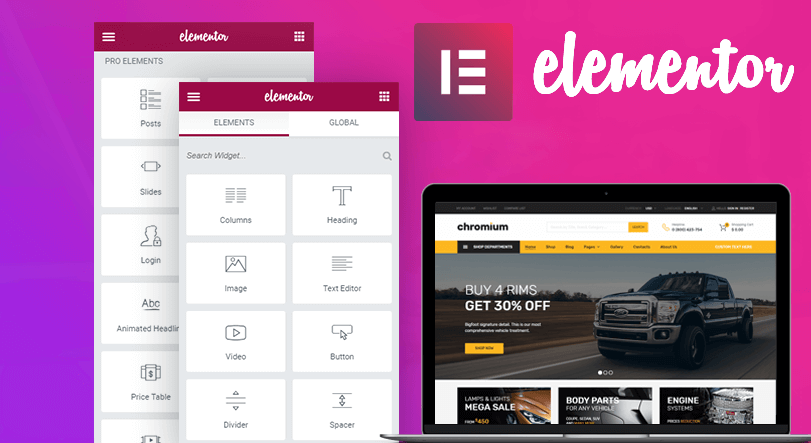
Elementor Not Loading Error is a common issue where the editor fails to display or gets stuck on a loading screen. This usually results in:
- Inactive widgets panel or spinning loader.
- Blank or gray screen when launching Elementor.
- Inability to add new sections or widgets, though sometimes, existing content is still editable.

How to Fix Elementor Not Loading Error
Below are essential troubleshooting steps, addressing the most common causes:
- Clear Browser Cache
Outdated cached files can prevent Elementor from loading. Clear your browser cache and reload the editor to see if the problem is resolved.
- Check for Plugin Conflicts
Deactivate all plugins except Elementor and Elementor Pro. If Elementor loads, reactivate plugins one by one to find any conflict.
- Ensure Theme Compatibility
Switch to a default WordPress theme (such as Hello Elementor). If Elementor works, your previous theme may be incompatible.
- Update PHP Version & Increase Memory Limit
If the web hosting server runs an outdated version of PHP or has limited PHP Memory, it can also lead to the “Elementor Not Loading” error. Elementor recommends using PHP 7.0 or higher for best performance with a preferred 128M or higher memory limit.
- Disable Unused Widgets and Addons
Disable unnecessary Elementor widgets and addons to minimize resource usage and chances of incompatibility.
- Switch Editor Loader Method
Go to Elementor > Settings > Advanced and enable the “Switch Editor Loader Method” option. This can resolve loading inconsistencies caused by server configurations.

- Use Well-Coded Elementor Addons
Using a lot of “free” Elementor addons will consume more server resources, conflicts, and several other compatibility issues. So, picking one or two of the Elementor addons is always recommended for the best and better performance.
2. Content Area Missing in Elementor Error
“Sorry, the content area was not found on your page. You must call the_content function in the current template in order for Elementor to work on this page.”
What Is the_content and Why It’s Important
The the_content function is a function of WordPress which fetches the content from the back end and displays it on the screen. Elementor replaces the content of the page and shows its contents instead. If Elementor is not able to call the function, then the Elementor cannot work.
How to Fix “Content Area Missing” Error
- Method 1: Switch to an Elementor-Compatible Theme:
The quickest solution is to use a theme that already includes the_content function in its templates. Popular options like Hello Elementor or GeneratePress are designed for full Elementor compatibility.
- Add the_content Function to Template File
If you do not want to switch to a different theme, you can try this alternative. Add the the_content function to the page template’s code by just adding this line: <?php the_content(); ?>
3. Elementor Blank Page Errors
If you encounter a blank page when trying to edit with Elementor, this often points to insufficient WordPress memory or compatibility issues. To ensure smooth functioning, confirm that your website meets Elementor’s recommended system requirements.
How to Fix Elementor Blank Page Errors
- Method 1: Increase WordPress Memory Limit
You can contact your hosting company and request them to increase your website’s WP memory.
- Method 2: Switch Editor Loader Method
Go to WP Dashboard > Elementor > Settings. Click on the Advanced tab, enable the switch editor loader method, and check if the issue is resolved.

- Method 3: Verify URL Consistency
A blank page can occur if your backend URL differs from the frontend URL. Ensure your WordPress Address (URL) and Site Address (URL) match in Settings > General to avoid this conflict.
- Method 4: Deactivate Conflicting Plugins
Plugin conflicts are a frequent cause. Deactivate all plugins except Elementor and Elementor Pro, then check if the editor loads. Reactivate plugins one by one to find the culprit. Pay special attention to third-party Elementor addons.
4. If you are getting a gray page while Editing with Elementor
If the Elementor editor shows a gray page instead of loading properly, this issue is often caused by a plugin conflict or sometimes by browser extension interference.
How to Fix the Gray Page Error in Elementor
- Method 1: Identify Plugin Conflicts
Deactivate all plugins except Elementor and Elementor Pro, then check if Elementor loads correctly. If it does, reactivate the plugins one by one to find which plugin is causing the conflict.
- Method 2: Check Your Browser Extensions
There is a chance that the root of this issue is one of the extensions on your web browser. Try editing your page in a different browser or use an incognito/private window. This helps confirm whether a browser extension is causing the problem.
5. Can’t Edit Page with Elementor Error
If trying to edit a page with Elementor redirects you back to the live page instead of opening the editor, the issue is usually caused by either a plugin conflict or insufficient PHP memory on your server.
How to Fix “Can’t Edit Page” Error in Elementor
- Method 1: Increase PHP Memory Limit
If it is a memory issue, you can contact your hosting company and request them to increase your website’s PHP memory limit.
- Method 2: Identify Plugin Conflicts
Deactivate all plugins except Elementor and Elementor Pro, then try editing the page again. If Elementor loads successfully, reactivate plugins one at a time to find the conflicting plugin causing the redirect.
6. Changes not visible in Elementor Error
Sometimes you may make changes in Elementor, but the updates don’t show on the live site or after publishing. This issue is often caused by caching or theme conflicts.
How to Fix Changes Not Visible in Elementor
- Method 1: Regenerate CSS & Clear Cache
Elementor > Tools > Elementor Cache. After regenerating, clear all caches including any WordPress caching plugins and your browser cache. Then refresh the page to see if changes appear.
- Method 2: Clear Server and Plugin Cache
If your site uses caching plugins or server-level caching (like CDN or hosting cache), clear those caches as well.
- Method 3: Clear Browser Cache or Use Incognito Mode
Sometimes browser cache stores older versions of your site. Clear your browser cache or check your site in a private/incognito window to see the latest changes.
- Method 4: Test with a Default WordPress Theme
This issue can be because of the theme. You can try changing to the default theme of WordPress, such as Twenty Sixteen, and if it solves the problem, contact the developers of your theme.
- Method 5: Avoid Conflicts with Other Page Builders
Using multiple page builders on the same site can cause content override issues. If you use another builder alongside Elementor, try saving your Elementor template separately and re-adding it to new pages to avoid conflicts.
7. The Publish/Update button not Working on Elementor
If the Publish or Update button in Elementor does not respond or fails to save your changes, this issue is often related to insufficient PHP memory or server configuration problems.
How to Fix the Publish/Update Button Not Working Error
- Method 1: Increase PHP Memory Limit
Elementor requires an adequate PHP memory limit to work correctly, typically at least 128MB or more. You can increase this limit by editing the file or, preferably, by contacting your hosting provider to raise the memory for you.
- Method 2: Address admin-ajax.php Timeout Errors
Sometimes, it can happen when the admin-ajax script timeouts. To confirm this, check if any error messages are appearing on your console by pressing F12. If you find a message which says, “Failed to load resource: the server responded with a status of 413”, then add the following directives to your .htaccess file to increase the dynamic timeout.
<IfModule mod_dtimeout.c> <Files ~ “.php”> SetEnvIf Request_URI “admin-ajax.php” DynamicTimeout=150 </Files> </IfModule>
- Method 3: Add SSL and Update URLs
Sometimes, server or security settings can block saving updates. Make sure your site has a valid SSL certificate (HTTPS). After enabling SSL, update the site URLs inside WordPress by navigating to Elementor > Tools > Replace URL.

- Method 4: Resolve 403 Errors from Security Plugins
If it is a 403 error when you try to update the page, it is due to a security plugin. Try activating the plugin’s learning mode or contact the plugin’s support to resolve this.
8. Getting 500 Error While Using Elementor
A 500 Internal Server Error is a generic server-side issue that can prevent Elementor from working as expected. This error means something went wrong on your web server, but the exact cause needs investigation. Checking your server’s error logs is the first step to identify the root problem.
Possible cause
- Not enough memory allocated to your website – Elementor requires 128 MB (Minimum) memory to function properly. If your website includes other plugins, we recommend 512MB. It might be that the memory allocated to your website is not enough to support its needs which results in a 500 error.
- Third party plugin issue – If Elementor is not the only plugin you’re using, this 500 error might originate from an issue with other plugins.
- Fatal Errors – A 500 error might be a result of another error, a fatal error. Fatal errors originate from your website’s PHP file.
How to Fix the 500 Server Error
Method 1: If the error appears on all website pages
- Back up your site.
- Update Elementor and Elementor Pro to the latest versions.
- Deactivate all plugins except Elementor (and Pro) to identify conflicts.
- Reactivate plugins one by one to find the problematic one.
Method 2 : If the error appears on a specific page
- Go to Dashboard > Pages > Clone the page

- Change the name of the page, make it Private and set the status as Draft.

- In the new Cloned page, Give title of the page and set status as published

- Now, you can open the page and start editing.
Method 3 : If the error occurs while updating a page
- Refer to Method 2
9. Font Awesome Icons Not Loading
After the major Elementor 2.6.5 update, many WordPress sites experienced issues where Font Awesome icons were not loading properly.
How to Fix Font Awesome Icons Not Loading
- Method 1: Ensure Addons and Plugins Are Compatible
If you use any third-party Elementor addons, make sure they are fully compatible with the latest version of Font Awesome. Outdated addons can cause icon loading problems.
- Method 2: Enable Font Awesome 4 Support in Elementor
Step 1- Go to WP admin > Elementor > Settings > Advanced Tab
Step 2– In the Advanced tab, set the option Load Font Awesome 4 Support to Yes.